

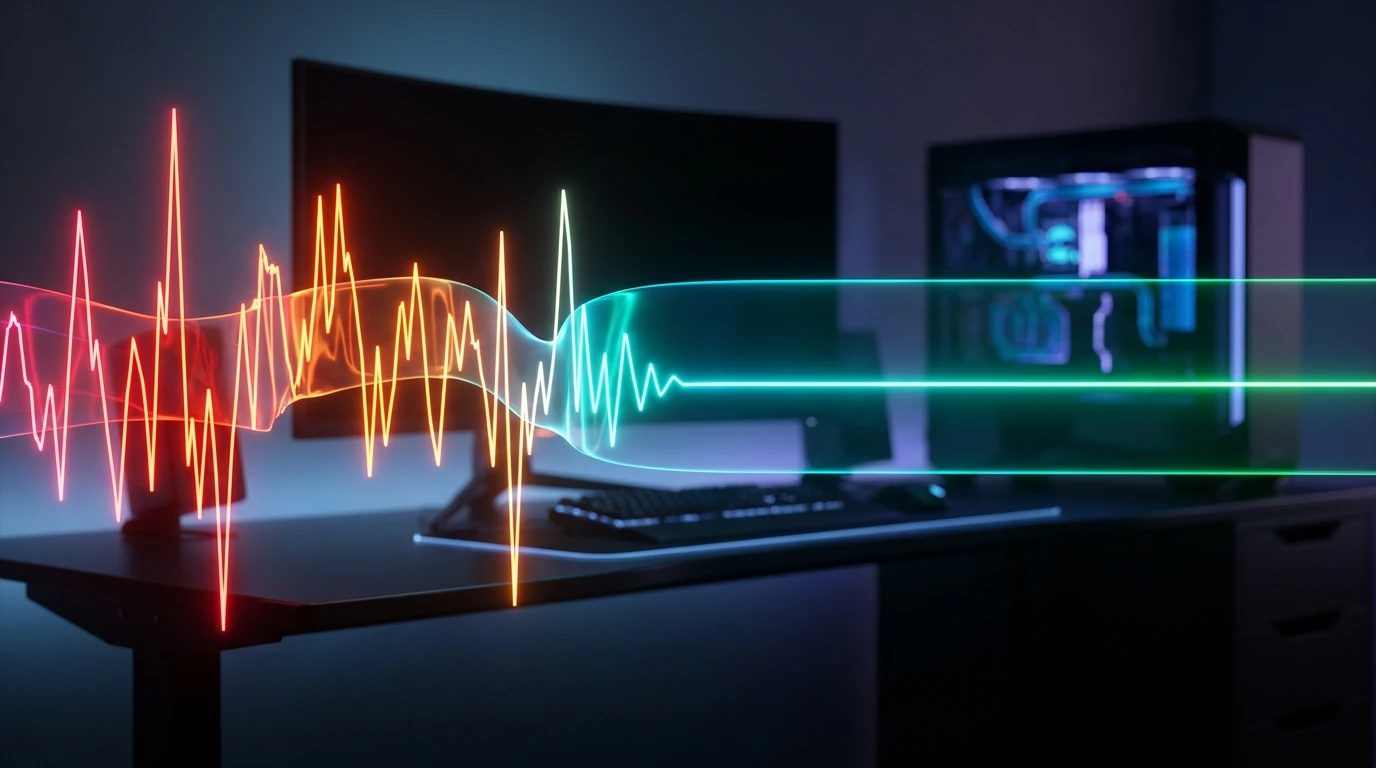
A high average frame rate does not guarantee smooth gameplay. Your in-game counter might report 144 FPS or 240 FPS, yet your camera feels jittery, tracking targets feels imprecise, and fast motion hitches during intense gunfights. When this occurs, players often lower their resolution or upgrade their graphics card, only to find the stuttering persists.
The issue is rarely average frame rate. It is frame pacing variance, commonly measured as 1% and 0.1% low FPS. While average FPS reflects the total number of frames rendered over an entire second, 1% lows measure the consistency of individual frame delivery times. When a single frame takes three to five times longer to render than the frames surrounding it, your display pauses for a fraction of a second. The human eye perceives this sudden pause as a micro-stutter.
Eliminating micro-stutters requires stabilizing your frame times. By addressing shader compilation bottlenecks, calibrating frame rate limiters, avoiding peripheral CPU interrupts, and preventing memory bus saturation, you can restore fluid, predictable frame delivery across modern PC titles.
Average FPS vs Frame Pacing: Understanding the Math
To fix stuttering, you must evaluate frame delivery in milliseconds rather than frames per second.
At a steady 144 FPS, each frame should ideally take approximately 6.94 milliseconds (ms) to render (1000 ms / 144 frames = 6.94 ms). If your GPU delivers 143 frames at 6.94 ms, but one single frame stalls for 45 ms due to an asset loading spike, your average FPS for that second still reads as 130+ FPS. However, that 45 ms stall represents a momentary drop to 22 FPS. Your monitor repeats the previous frame while waiting for the GPU, creating a visible hitch.
| Metric | Measurement Unit | What It Measures | Impact on Competitive Play |
|---|---|---|---|
| Average FPS | Frames per second | Total compute throughput over a full second | General fluidity; masks sudden performance dips |
| 1% Low FPS | Frames per second / ms | Average performance of the slowest 1% of all rendered frames | Predictability during gunfights, particle effects, and rapid turns |
| 0.1% Low FPS | Frames per second / ms | The absolute worst frame stalls in a benchmark session | Hard freezes, hitching, and dropped keyboard/mouse inputs |
| Frame Time | Milliseconds (ms) | Time required to process and present an individual frame | A flat, horizontal line represents perfect smoothness |
You can monitor frame times in real time using tools like RivaTuner Statistics Server (RTSS), CapFrameX, or MSI Afterburner. A healthy connection and system produces a flat, straight line on the frame time graph. Spikes that resemble jagged teeth indicate micro-stutters.
Step 1: Fix Shader Compilation Stutter (DirectX 12 & Vulkan)
Shader compilation stutter is the most widespread cause of micro-stuttering in modern gaming. In older DirectX 11 titles, graphics drivers handled shader compilation behind the scenes or during driver installation. In modern DirectX 12 and Vulkan titles, game engines compile Pipeline State Objects (PSOs) as new visual assets appear in real time.
When a player fires a weapon with a new muzzle flash effect or enters a map zone with distinct lighting, the game pauses rendering for 20 ms to 100 ms while the CPU compiles the required shader code.
Expand Your GPU Shader Cache Size
By default, graphics drivers allocate a conservative shader cache limit (often 1 GB to 4 GB). Once this cache fills, the driver deletes older compiled shaders to make room for new ones. When you return to an earlier map or encounter a familiar visual effect, the engine must compile it again, reintroducing the stutter.
- Right-click your desktop and open NVIDIA Control Panel.
- Select Manage 3D Settings from the left navigation panel.
- Under the Global Settings tab, scroll down to Shader Cache Size.
- Change the value from Driver Default to 10 GB or Unlimited.
- Click Apply at the bottom right.
For AMD graphics cards, open AMD Software: Adrenalin Edition, navigate to Gaming > Graphics > Advanced, and perform a Reset Shader Cache if you experience hitching after a major game update or driver installation.
If hitching and frame drops started immediately following a display driver upgrade, leftover registry keys from previous driver revisions often corrupt shader pipeline compilation. In those cases, use Display Driver Uninstaller to perform a clean GPU driver installation in Safe Mode to purge corrupted driver files and rebuild shader caches from a clean slate.
Let Shaders Pre-Compile at the Main Menu
Many competitive titles (such as Call of Duty, Apex Legends, and Fortnite) include a shader compilation progress bar on the main menu. Never jump straight into a multiplayer match while shaders are compiling in the background. Allow the progress bar to reach 100% to ensure that the CPU does not divide its compute cycles between game logic and shader compilation during gameplay.
Step 2: Calibrate Frame Rate Caps and Sync Technologies
Running an uncapped frame rate often harms frame pacing. When a GPU operates at 99% to 100% utilization, its internal render queues fill with queued frames. When an unexpected visual explosion occurs, the GPU cannot clear its queue fast enough, causing a sharp frametime spike.
Uncapped frame rates also bounce against your monitor's maximum refresh rate, causing variable refresh rate (G-Sync or FreeSync) modules to disengage and re-engage continuously.
The Correct Sync and Frame Cap Configuration
To achieve perfectly flat frame pacing on variable refresh rate monitors, establish a strict frame ceiling just below your display's maximum refresh rate:
- Enable Variable Refresh Rate: Turn on G-Sync or FreeSync in your monitor's hardware on-screen display (OSD) and in your GPU control panel.
- Enable V-Sync in the GPU Control Panel: Open NVIDIA Control Panel or AMD Adrenalin and set Vertical Sync to On globally. (Turn V-Sync Off inside individual in-game menus). When paired with G-Sync, driver-level V-Sync acts as a frame pacing regulator rather than an input-lag-inducing buffer.
- Cap Your Frame Rate Below Refresh Rate:
- On a 144 Hz display: Cap at 141 FPS.
- On a 240 Hz display: Cap at 237 FPS.
- On a 360 Hz display: Cap at 355 FPS.
Setting the cap 3 to 4 frames below the refresh ceiling guarantees that your monitor stays within its variable refresh rate window at all times, preventing tearline oscillation and buffer stalls. For an in-depth breakdown of why driver V-Sync must stay enabled while in-game V-Sync stays disabled, check our dedicated G-Sync, FreeSync, and V-Sync calibration guide.
For an in-depth breakdown of render queues, driver latency flags, and display input latency, see our guide on how to reduce input lag in PC games.
Step 3: Eliminate High Mouse Polling Rate CPU Bottlenecks
High-polling-rate gaming mice (operating at 4000 Hz or 8000 Hz) have become popular in competitive gaming. While standard mice report position data 1000 times per second (a 1 ms interval), an 8000 Hz mouse sends reports every 0.125 ms.
Every single USB report triggers a hardware interrupt (IRQ) on your processor. On systems with older processors or chips without massive L3 cache pools, sending 8000 position updates per second overwhelms the primary CPU core handling the game's main render loop.
How to Diagnose Mouse-Induced Stutters
- Stand completely still in an empty practice range or offline match.
- Look at a wall while keeping your mouse motionless. Observe the frametime line in RTSS or Afterburner.
- Rapidly sweep your mouse back and forth across your mousepad.
- If the frametime graph spikes into jagged teeth only while moving the mouse, your processor cannot handle the USB polling frequency.
The Solution
- Open your mouse manufacturer configuration software (such as Razer Synapse, Logitech G Hub, or Pulsar Fusion).
- Lower the polling rate from 8000 Hz or 4000 Hz down to 1000 Hz or 2000 Hz.
- Ensure your mouse DPI is set to 1600 DPI or higher. At 400 DPI, you must move the mouse physically faster to saturate high report rates, leading to uneven reporting intervals that manifest as micro-stutters.
Step 4: Prevent VRAM Buffer Overflow and Memory Bottlenecks
Graphics cards possess a fixed pool of high-speed Video RAM (VRAM). When you select graphics presets that exceed your physical VRAM capacity, the graphics driver must page excess textures into standard system RAM across the PCIe bus.
System RAM operates with significantly lower bandwidth and higher latency than dedicated GDDR6 or GDDR6X VRAM. The moment a game tries to read high-resolution textures from system RAM during gameplay, the render pipeline stalls, producing a half-second hitch.
Establish a VRAM Safety Margin
- In game settings, check the VRAM allocation bar.
- Never configure graphics settings to use more than 85% of your total VRAM.
- If your card has 8 GB of VRAM, reduce Texture Quality from Ultra to High. Texture resolution is the single largest consumer of VRAM, and dropping it by one step frees 1.5 GB to 3 GB of memory with almost zero perceptible impact on in-game visual clarity.
For specific calibrations on post-processing, shadows, and visibility tradeoffs, read our walkthrough on competitive graphics settings for visibility and latency.
Verify RAM Dual-Channel Operation and XMP/EXPO
Standard system RAM bandwidth directly influences 1% low performance. If your memory runs at baseline JEDEC speeds (such as DDR4-2133 or DDR5-4800) because you forgot to enable overclocking profiles in your motherboard BIOS, your CPU will stall while fetching game assets.
- Press
Ctrl + Shift + Escto open Task Manager and switch to the Performance tab. - Click Memory.
- Verify the reported Speed matches your RAM kit's rated specifications (e.g., 3200 MHz, 3600 MHz, or 6000 MHz). If it reads much lower, restart your PC, enter the BIOS, and enable XMP (Intel) or EXPO / DOCP (AMD).
- Verify the Slots used field reads
2 of 4(or4 of 4). If your memory runs in single-channel mode, your memory bandwidth is cut in half, severely degrading 1% low frame rates during physics calculations and explosions.
Enable Resizable BAR (ReBAR)
In traditional PC architecture, processors can only access GPU memory in small 256 MB apertures. Resizable BAR (or Smart Access Memory on AMD) allows the CPU to negotiate full, concurrent access to the entire VRAM framebuffer.
Ensure Above 4G Decoding and ReBAR Support are set to Enabled in your motherboard BIOS. This eliminates transfer bottlenecks in modern games, producing measurable improvements in 1% low stability.
Step 5: Check Thermal Throttling and Clock Drops
Modern CPUs and GPUs utilize aggressive dynamic boost algorithms. When hardware temperatures cross internal safety thresholds (typically 80°C to 85°C on GPUs and 90°C to 100°C on modern CPUs), the processor downclocks instantly to prevent physical damage.
This downclocking drops core frequencies by 300 MHz to 1000 MHz in a fraction of a second. If your CPU drops its clock speed during a heavy particle explosion, frame delivery collapses momentarily.
To diagnose whether thermal limits are causing your frame drops, review our guide on how to check PC temperature and fix thermal throttling.
Step 6: Eliminate Windows Background Scheduling Collisions
Windows background services can interrupt your game's CPU threads if thread scheduling is not prioritized correctly.
Disable Conflicting Overlays
Overlays inject hook libraries directly into a game's DirectX or Vulkan rendering pipeline. Multiple overlays competing for render hooks can cause frequent frame pacing hitches:
- Discord Overlay: Open Discord Settings > Game Overlay > Turn off Enable in-game overlay.
- Xbox Game Bar: Open Windows Settings > Gaming > Xbox Game Bar > Toggle to Off.
- GeForce Experience / AMD In-Game Overlay: If you do not actively use instant replay or recording, disable the overlay in the driver settings.
Configure Windows Game Mode
Windows Game Mode prioritizes CPU and GPU resources for active gaming processes while parking background tasks onto efficiency cores. On systems with 8 GB to 16 GB of RAM, aggressive disk paging can also introduce severe hitching when background apps fight for memory. Check out our analysis of the Windows 11 performance and responsiveness overhaul to see how Microsoft's updated memory caching preserves active RAM and prevents pagefile stalls. If micro-stutters coincide with audio pops, clicks, or brief mouse hitches, rogue driver interrupt routines are likely stalling the CPU; learn how to fix DPC latency and audio crackling in Windows 11 using LatencyMon to restore smooth frame and sound delivery.
- Open Windows Settings by pressing
Windows Key + I. - Navigate to Gaming > Game Mode.
- Ensure Game Mode is toggled to On.
To verify which background services are consuming processor cycles or disk bandwidth while you play, follow our tutorial on how to check which programs use your internet and background resources. If you are optimizing lighter titles or sandbox engines, you can also consult our performance guide on how to increase FPS in Roblox.
Diagnostic Summary Checklist
When troubleshooting micro-stutters, resolve one variable at a time using this systematic approach:
- Verify Frame Pacing: Use RTSS to confirm whether your stutters correspond to frametime spikes rather than network packet drops. If you notice rubberbanding or actions failing to register, check our companion guide on how to fix packet loss and bufferbloat in online PC games.
- Increase Shader Cache: Set NVIDIA Shader Cache Size to 10 GB or Unlimited to prevent compiled PSO evictions.
- Lock Frame Ceiling: Cap your maximum FPS 3 to 4 frames below your monitor's refresh rate to maintain active G-Sync/FreeSync operation without filling GPU render queues.
- Tune Peripheral Polling: Lower mouse polling rate from 4000 Hz or 8000 Hz to 1000 Hz if stutters coincide with rapid mouse movement.
- Manage VRAM: Keep texture settings within 85% of your card's physical capacity to prevent texture paging over PCIe buses.
- Enable BIOS Features: Confirm XMP/EXPO memory profiles and Resizable BAR are enabled in BIOS.
By stabilizing frame delivery rather than chasing unconstrained maximum FPS, you ensure that every frame arrives in rhythm, delivering the responsive, fluid target tracking necessary for competitive gaming.
To evaluate system-level scheduling, Game Mode thread priorities, and the performance impact of Core Isolation, consult our analysis of Windows 11 gaming settings and performance tweaks.