

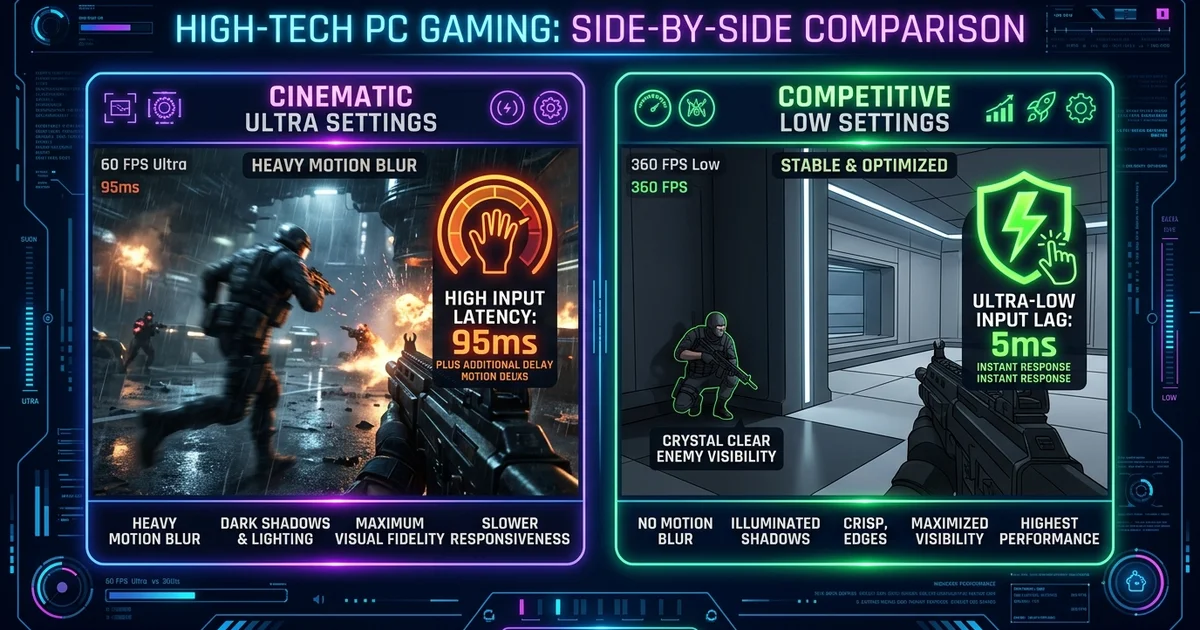
Modern PC games are shipped with graphics presets designed primarily to look stunning in promotional trailers and single-player showcases. Developers enable heavy volumetric fog, dynamic lens flares, film grain, and realistic contact shadows to create cinematic immersion. However, in fast-paced competitive shooters and multiplayer arenas, these visual embellishments actively degrade your performance: they conceal enemy silhouettes in dark corners, blur opponent movement during quick camera flicks, and introduce significant millisecond delays into your input pipeline.
Dialing in competitive graphics settings visibility latency requires a deliberate strategy. The objective is not simply lowering every slider to "Low" without understanding the consequences. Certain settings (like texture filtering and model detail) provide critical tactical visibility when left on medium or high, whereas others (such as motion blur and ambient occlusion) should almost always be disabled. By calibrating each render stage, you strip away visual clutter and ensure your inputs register as instantaneously as possible.
The Competitive Settings Calibration Matrix
Every visual setting in a modern rendering engine introduces a specific tradeoff between GPU frame render time, visual noise, and competitive clarity. Use this baseline matrix across competitive titles (including tactical shooters, battle royales, and action arenas):
| Graphics Setting | Competitive Recommendation | Latency Impact | Tactical Visibility Effect | Why You Should Use It |
|---|---|---|---|---|
| Motion Blur | Disabled (Off) | Low | Eliminates heavy blur during rapid mouse flicks | Targets remain sharp and trackable during fast camera pans |
| Depth of Field (DoF) | Disabled (Off) | Low | Prevents peripheral and background blurring | Keeps distant enemies crisp when aiming down sights |
| Film Grain / Chromatic Aberration | Disabled (Off) | Negligible | Eliminates artificial visual noise and color fringing | Removes pixel-level fuzziness that masks subtle movements |
| Ambient Occlusion (SSAO/HBAO) | Disabled (Off) | Medium | Removes artificial dark contact shadows | Illuminates dark corners and underbrush where players hide |
| Shadow Quality | Low (or Medium) | High | Prevents dark geometry shadows while keeping player shadows | Cuts GPU render time without losing enemy positional shadow cues |
| Texture Quality | Medium to High | Low (if VRAM allows) | Keeps crosshairs, player models, and surfaces clear | Sharpens visual contrast without adding GPU compute latency |
| Anisotropic Filtering | 8x or 16x | Negligible on modern GPUs | Keeps ground angles and distance textures sharp | Negligible cost on modern hardware; preserves crisp surface detail |
| Anti-Aliasing (AA) | Low / FXAA / Off | Medium to High | Removes temporal blur associated with aggressive TAA | Sharpens edge clarity and prevents visual smearing |
| Render Resolution / Scale | 100% Native | Very High | Preserves 1:1 pixel grid alignment for precise aiming | Downscaling causes pixel shimmer; upscaling adds frame processing |
1. Post-Processing Effects: The Primary Enemies of Clarity
Post-processing effects are shaders applied to a frame after the core geometry and lighting have been rasterized. In competitive titles, these effects consume rendering time and actively hinder target acquisition:
Motion Blur and Camera Blur
Motion blur calculates the velocity vectors of moving objects and smears pixels in the direction of travel to simulate shutter speed. While visually smooth at 30 or 60 frames per second in cinematic titles, motion blur is disastrous in competitive gaming. When you perform a 180-degree snap or track an airborne enemy, motion blur turns the target into a muddy streak. Disabling motion blur keeps every frame razor-sharp, allowing your visual cortex to track targets accurately.
Depth of Field (DoF)
Depth of Field intentionally blurs areas of the scene that lie outside your virtual camera's focal plane. In many shooters, aiming down sights (ADS) triggers DoF, blurring the outer two-thirds of your monitor. In competitive gameplay, situational awareness in your peripheral vision is vital. Turn DoF off to maintain full optical clarity across your entire field of view.
Ambient Occlusion (AO, SSAO, HBAO)
Ambient occlusion calculates how ambient light is obstructed in creases, corners, and joints, adding realistic soft drop shadows. In competitive gameplay, these soft shadows darken corners and camouflage players holding defensive angles. Disabling ambient occlusion flattens the lighting slightly, making dark character skins immediately stand out against walls and floors.
2. Shadows and Lighting: Preserving Tactical Information
Completely disabling shadows can occasionally put you at a competitive disadvantage. In titles where dynamic player shadows are cast around corners, a shadow cast onto the floor can alert you to an opponent's approach before their character model emerges into line of sight.
- Set Shadow Resolution to Low or Medium: This ensures dynamic character shadows are rendered, but avoids the heavy GPU compute overhead required for soft shadow penumbras and multi-sample PCF filtering.
- Disable Volumetric Fog and God Rays: Volumetric lighting renders light scattering through atmospheric particles. In competitive matches, god rays and sun shafts blind players looking toward the horizon or second-story windows.
To learn more about how frame pacing, rendering buffers, and display sync impact your reaction time, review our detailed guide on how to reduce input lag in PC games.
3. Anti-Aliasing: The Temporal Blur Tradeoff
The debate between jagged edges and temporal blur is central to competitive graphics configuration.
- Temporal Anti-Aliasing (TAA): TAA samples data across multiple historical frames to smooth out aliasing artifacts. While excellent at removing static edge jaggies, TAA introduces severe ghosting and temporal smearing during rapid camera movements. This makes distant targets appear soft and out of focus.
- Fast Approximate Anti-Aliasing (FXAA) or MSAA: FXAA applies a lightweight spatial edge blur, costing virtually zero performance, while MSAA (Multisample Anti-Aliasing) smooths geometric edges without blurring internal texture details.
- Off / Low AA: If your display runs at 1440p (2560x1440) or 4K, pixel density is sufficiently high that disabling anti-aliasing altogether yields the sharpest possible image for distant pixel hunting.
If your hardware struggles to sustain high frame rates when adjusting geometry and anti-aliasing, check our guide on how to increase FPS in Roblox and lightweight multiplayer titles for specific rendering pipeline optimizations.
4. Render Scale vs Native Resolution
Your render scale should almost always be locked to 100% (Native Resolution).
- Sub-Native Scaling (e.g., 75% or 85%): While lowering render scale reduces GPU workload, it forces your graphics card or display scaler to interpolate pixels. This creates pixel shimmer, muddy reticles, and sub-pixel aliasing that makes distinguishing between enemy heads and distant background geometry extremely difficult.
- Upscaling Technologies (DLSS / FSR / XeSS): If your GPU is heavily bottlenecked, modern spatial or AI upscalers configured to Quality Mode can provide a massive frame rate boost with acceptable clarity. However, ensure sharpening sliders are tuned conservatively (between 20% and 40%) to prevent over-sharpening halos around player silhouettes.
5. Reflex and Low Latency Rendering Modes
Maximizing visibility is only half the battle; the frames you see must also be delivered to your display as quickly as possible. Modern graphics drivers feature low-latency SDKs that synchronize CPU frame dispatch with GPU execution:
- NVIDIA Reflex / AMD Anti-Lag: Set this to On (or On + Boost if your CPU is not power-throttled). Reflex eliminates the GPU render queue, ensuring the CPU does not prepare frames faster than the GPU can render them. This drops click-to-photon latency dramatically without sacrificing visual fidelity.
- Frame Rate Limiting: Avoid using unbounded frame rates if your GPU hits 99% utilization, as saturated GPUs suffer from internal queuing latency. Cap your frame rate slightly below your monitor's maximum refresh rate (e.g., 141 FPS on a 144Hz panel, or 237 FPS on a 240Hz panel) when pairing with G-Sync or FreeSync. For a complete calibration breakdown of driver presentation settings and tear line elimination, follow our guide on G-Sync, FreeSync, and V-Sync settings for lowest lag.
6. Monitor Color Tuning & Black Equalizer
Your in-game settings work hand-in-hand with your physical monitor's display panel settings:
- Black Equalizer / Shadow Boost: Most modern gaming monitors include a Black Equalizer or Shadow Boost feature. Setting this moderately high brightens dark shadows without blowing out highlights, illuminating dark corridors.
- Digital Vibrance / Color Saturation: Boosting digital vibrance by 10%–20% (via the NVIDIA Control Panel, AMD Software, or monitor OSD) makes player model colors pop dramatically against neutral environment backgrounds (concrete, foliage, sand).
Practical Takeaway
Optimizing competitive graphics settings is a systematic process of eliminating distractions and latency while preserving essential positional information:
- Turn off motion blur, depth of field, chromatic aberration, and ambient occlusion immediately.
- Keep shadows on low or medium so you retain dynamic player shadow cues without the severe frame rate penalty of soft shadows.
- Maintain native 100% render scale and pair high refresh rates with low-latency technologies like NVIDIA Reflex or AMD Anti-Lag.
Applying these calibrated settings gives you the cleanest visual canvas possible—enabling faster target recognition, instantaneous reflex response, and fluid tracking under high-pressure competitive scenarios.
If you experience jarring frame pacing hitches despite high average FPS numbers, explore our comprehensive guide on how to fix micro-stutters and frame time spikes in PC games to optimize shader caches and sync limits.