

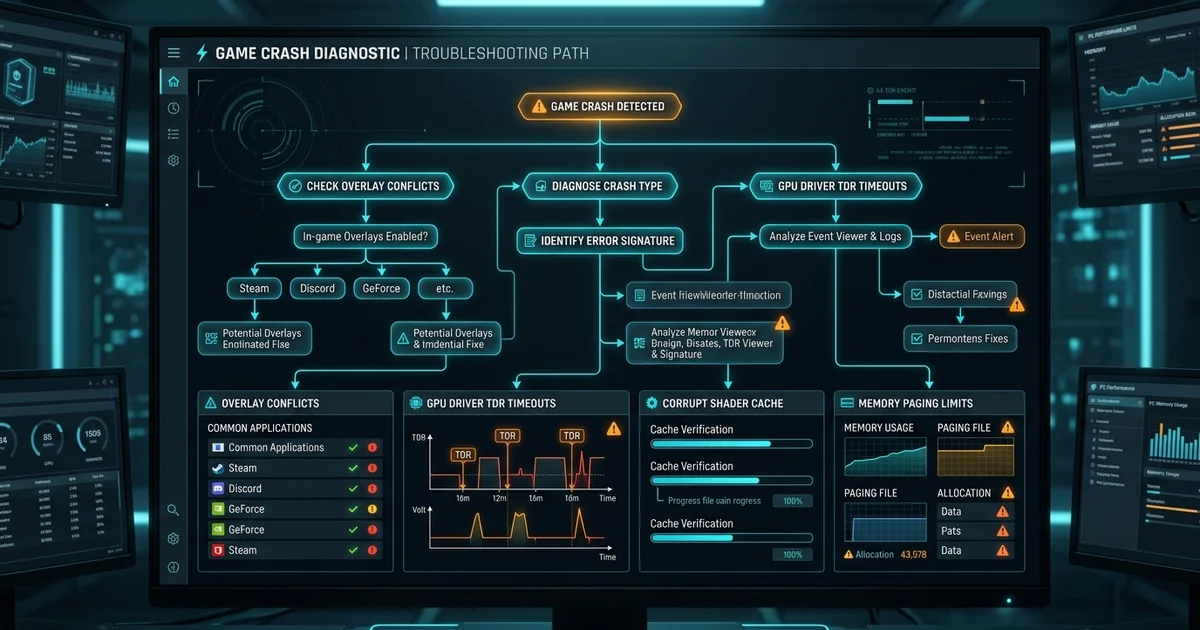
Few gaming issues are more frustrating than a sudden, silent crash back to your desktop during an intense multiplayer match. In Roblox, client crashes often happen without generating an explicit error code. The game window might freeze for two seconds before disappearing completely, get stuck indefinitely on a white screen upon launch, or stutter violently until Windows forces the process to terminate.
Because the Roblox Windows client relies on real-time asset streaming, custom Luau bytecode execution, and aggressive anti-cheat integrity checks, multiple hardware and software layers can trigger an abrupt exit. To fix Roblox crashing freezing Windows issues reliably, you must isolate the root cause methodically rather than randomly reinstalling the game or tweaking settings at random.
Roblox Crash Symptom & Diagnostic Matrix
Before applying system-wide changes, identify the exact behavior of your crash. Different crash patterns point to distinct architectural bottlenecks.
| Crash Behavior | Most Common Root Cause | Quick Verification Step | Primary Fix |
|---|---|---|---|
| Instant desktop exit (no error message) | Conflicting third-party background overlay (Discord, RTSS, OBS) | Exit all background tray apps before launching | Disable game overlays or add executable exclusions |
| White screen or black screen on startup | Corrupted graphics renderer cache or broken shader cache | Check if other DirectX/Vulkan titles launch properly | Purge DirectX shader cache and clear Roblox AppData |
| Freezes after 5–15 minutes of gameplay | GPU driver TDR (Timeout Detection and Recovery) or thermal throttling | Monitor core temps via HWiNFO or MSI Afterburner | Roll back or clean install GPU drivers; inspect PC cooling |
| Game stutters, memory skyrockets, then closes | Memory leak / RAM exhaustion in high-part-count experiences | Inspect memory commit in Windows Task Manager (Ctrl + Shift + Esc) | Increase Windows virtual memory paging file size |
| "Roblox has crashed" dialogue upon loading | Antivirus false positive or damaged client binary files | Review Windows Defender Protection History | Whitelist RobloxPlayerBeta.exe and perform clean reinstall |
Step 1: Eliminate Background Overlay & Hook Collisions
The modern Roblox desktop client incorporates Hyperion (Byfron), an anti-tamper security layer that monitors process memory and hooked API calls. Many legitimate gamer utilities use dynamic dynamic-link library (DLL) injection to draw on-screen displays over the game window. When these hooks clash with Hyperion or your graphics driver, Roblox closes instantly without warning.
Test by closing these known conflicting utilities from the Windows system tray:
- Discord Overlay: Open Discord Settings > Game Overlay > Toggle Enable in-game overlay to Off.
- RivaTuner Statistics Server (RTSS): If you use MSI Afterburner for monitoring, set the RTSS Application Detection Level to None for
RobloxPlayerBeta.exe, or close RTSS entirely while playing. - GeForce Experience / ShadowPlay: Disable the NVIDIA in-game overlay in GeForce Experience Settings.
- Xbox Game Bar: Navigate to Windows 11 Settings > Gaming > Game Bar and toggle off the capture overlay.
If you suspect background software or unauthorized background threads are consuming system resources or conflicting with game processes, review our companion guide on how to check which programs use your internet and CPU.
Step 2: Clear Corrupted Asset and Shader Caches
Roblox streams textures, 3D meshes, and Luau script bytecodes directly from content delivery networks into your local storage. If a network blip corrupts an asset file on disk, the client renderer can crash the instant your avatar encounters that asset in an experience.
Flushing your local temporary assets resets the engine's local state without affecting your saved account progression or inventory:
- Press Win + R, type
%localappdata%\Roblox, and hit Enter. - Locate and open the Downloads folder. Select all files inside (
Ctrl + A) and press Shift + Delete. - Return to the Roblox root directory, enter the logs folder, and delete the log files.
- Open the Windows Run dialog again, type
%temp%\Roblox, and delete all contents within.
Additionally, purge your Windows DirectX Shader Cache:
- Open Windows Settings > System > Storage > Temporary files.
- Check DirectX Shader Cache and click Remove files. This forces your GPU to rebuild clean shaders on the next launch.
Step 3: Switch Graphics Renderer and Adjust In-Game Rendering
Roblox supports multiple graphics backends on Windows, including DirectX 11, DirectX 9/10 fallbacks, and Vulkan. On some older hardware or specific integrated GPU (iGPU) configurations, driver-level Vulkan or D3D11 feature mismatches can cause complete engine lockups.
Lower Rendering Level in Settings
If you can reach the main Roblox menu or open an experience for even a few seconds:
- Press Esc inside any game experience.
- Navigate to the Settings tab.
- Change Graphics Mode from Automatic to Manual.
- Lower the Graphics Quality slider to level 1–3 to drastically reduce GPU memory footprint.
If lower rendering settings stabilize the client, the issue was likely VRAM exhaustion or thermal clock throttling. For in-depth settings optimization to balance visuals and fluid framerates, check our guide on how to increase FPS in Roblox.
Step 4: Fix GPU Driver Crashes & TDR Timeouts
When a graphics card takes longer than two seconds to render a single frame, Windows assumes the GPU hardware has hung and executes a Timeout Detection and Recovery (TDR) reset. The GPU restarts its display driver, causing full-screen 3D applications like Roblox to crash to desktop immediately.
Perform a Clean GPU Driver Installation
Outdated or corrupted graphics drivers are the primary culprit behind TDR resets:
- NVIDIA Users: Download the latest Game Ready Driver from NVIDIA's official site. During installation, select Custom (Advanced) and check Perform a clean installation.
- AMD Users: Open AMD Software: Adrenalin Edition, verify driver updates, and select the Factory Reset checkbox during driver reinstallation.
- Intel Arc / UHD Users: Use the Intel Driver & Support Assistant (DSA) to update your DCH graphics drivers to the latest WHQL release.
If driver crashes persist even after updating, leftover registry entries or corrupted shader libraries from previous driver versions may be interfering. Follow our step-by-step walkthrough on how to clean install GPU drivers with DDU safely in Windows Safe Mode to completely wipe driver remnants before applying a fresh installation.
Step 5: Configure Windows Defender and Firewall Exclusions
Windows Defender or third-party security software can intermittently block Roblox background processes during automated silent updates, interpreting the newly downloaded binaries as untrusted.
Add Windows Defender Exclusions
- Press the Windows key, search for Windows Security, and open it.
- Select Virus & threat protection, then click Manage settings under Virus & threat protection settings.
- Scroll down to Exclusions and click Add or remove exclusions.
- Click Add an exclusion, choose Folder, and select:
C:\Users\<YourUsername>\AppData\Local\Roblox - Click Add an exclusion, choose Process, and enter:
RobloxPlayerBeta.exe
Step 6: Expand the Windows Virtual Memory (Paging File)
Complex Roblox experiences with high part counts, unoptimized physics models, and hundreds of custom player avatars can consume anywhere from 3GB to over 6GB of system memory. If your PC has 8GB or 16GB of physical RAM and Windows runs out of virtual memory, the operating system forcibly terminates the largest user-space process—which is invariably your game.
How to Configure a Managed Pagefile
- Press Win + R, type
sysdm.cpl, and press Enter to open System Properties. - Click the Advanced tab, and under the Performance group, click Settings.
- In the Performance Options window, select the Advanced tab, then click Change... under Virtual memory.
- Ensure Automatically manage paging file size for all drives is checked, or set a custom size on your fastest SSD drive:
- Initial size: 1.5x your physical RAM (e.g., 12288 MB for 8GB RAM).
- Maximum size: 3x your physical RAM (e.g., 24576 MB for 8GB RAM).
- Click Set, then OK, and restart your PC.
Step 7: Clean Reinstall Roblox via Windows Settings
If damaged binaries persist in the registry or local configuration files:
- Open Windows Settings > Apps > Installed apps.
- Search for Roblox, click the three dots, and select Uninstall.
- Press Win + R, enter
%localappdata%, and delete the entire Roblox directory. - Restart your computer to clear lingering file handles.
- Download a fresh copy of the installer directly from the official Roblox website and run it as an administrator.
Practical Takeaway
Fixing silent crashes and freezes in Roblox requires working through the common bottlenecks in sequence:
- First, close background overlays (Discord, RTSS, GeForce Experience) that interfere with Hyperion.
- Second, clear corrupted downloads and shader caches in
%localappdata%\Robloxand Windows temporary storage. - Third, perform a clean GPU driver installation to prevent TDR watchdog crashes.
- Finally, verify that your Windows paging file is properly configured to avoid out-of-memory process termination.
Following this structured diagnostic process will restore stable, freeze-free gameplay without requiring repeated system resets.