
KeylessUniversal
-- Made by D3v1lHub credits to me blah blah blah

-- UI Setup
local ScreenGui = Instance.new("ScreenGui")
local MainFrame = Instance.new("Frame")
local Title = Instance.new("TextLabel")
local VectorDisplay = Instance.new("TextLabel") -- Das neue (x, y, z) Display
local CreateBtn = Instance.new("TextButton")
local ClearBtn = Instance.new("TextButton")
local UnloadBtn = Instance.new("TextButton")

ScreenGui.Parent = game.CoreGui
MainFrame.Parent = ScreenGui
MainFrame.BackgroundColor3 = Color3.fromRGB(25, 25, 25)
MainFrame.Size = UDim2.new(0, 250, 0, 420)
MainFrame.Position = UDim2.new(0.5, -125, 0.5, -210)
MainFrame.Active = true
MainFrame.Draggable = false -- Wir machen es manuell über den Titel!

Instance.new("UICorner", MainFrame).CornerRadius = UDim.new(0, 12)

-- TITEL (Nur hier kann man das Fenster ziehen)
Title.Parent = MainFrame
Title.Size = UDim2.new(1, 0, 0, 40)
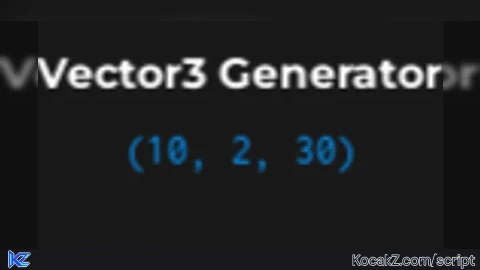
Title.Text = "Vector3 Generator"
Title.TextColor3 = Color3.fromRGB(255, 255, 255)
Title.BackgroundTransparency = 1
Title.Font = Enum.Font.GothamBold
Title.TextSize = 16

-- Dragging Logik für den Titel (verhindert Konflikt mit Slidern)
local UserInputService = game:GetService("UserInputService")
local dragToggle, dragStart, startPos
Title.InputBegan:Connect(function(input)
    if input.UserInputType == Enum.UserInputType.MouseButton1 then
        dragToggle = true
        dragStart = input.Position
        startPos = MainFrame.Position
        input.Changed:Connect(function()
            if input.UserInputState == Enum.UserInputState.End then dragToggle = false end
        end)
    end
end)
UserInputService.InputChanged:Connect(function(input)
    if input.UserInputType == Enum.UserInputType.MouseMovement and dragToggle then
        local delta = input.Position - dragStart
        MainFrame.Position = UDim2.new(startPos.X.Scale, startPos.X.Offset + delta.X, startPos.Y.Scale, startPos.Y.Offset + delta.Y)
    end
end)

-- Das Display für (x, y, z)
VectorDisplay.Parent = MainFrame
VectorDisplay.Size = UDim2.new(1, 0, 0, 20)
VectorDisplay.Position = UDim2.new(0, 0, 0, 35)
VectorDisplay.Text = "(1, 1, 1)"
VectorDisplay.TextColor3 = Color3.fromRGB(0, 150, 255)
VectorDisplay.BackgroundTransparency = 1
VectorDisplay.Font = Enum.Font.Code
VectorDisplay.TextSize = 14

local currentValues = {X = 1, Y = 1, Z = 1}

local function updateDisplay()
    VectorDisplay.Text = "(" .. currentValues.X .. ", " .. currentValues.Y .. ", " .. currentValues.Z .. ")"
end

-- Slider Erstellungs-Funktion
local function createSlider(name, pos, axis)
    local label = Instance.new("TextLabel", MainFrame)
    label.Text = name .. ": 1"
    label.Size = UDim2.new(0.8, 0, 0, 20)
    label.Position = pos
    label.BackgroundTransparency = 1
    label.TextColor3 = Color3.fromRGB(200, 200, 200)
    label.Font = Enum.Font.Gotham
    label.TextSize = 12
    label.TextXAlignment = Enum.TextXAlignment.Left

    local sliderBack = Instance.new("Frame", MainFrame)
    sliderBack.BackgroundColor3 = Color3.fromRGB(45, 45, 45)
    sliderBack.Size = UDim2.new(0.8, 0, 0, 4)
    sliderBack.Position = pos + UDim2.new(0, 0, 0, 22)
    Instance.new("UICorner", sliderBack)

    local sliderKnob = Instance.new("Frame", sliderBack)
    sliderKnob.BackgroundColor3 = Color3.fromRGB(0, 120, 255)
    sliderKnob.Size = UDim2.new(0, 14, 0, 14)
    sliderKnob.Position = UDim2.new(0, 0, 0.5, -7)
    Instance.new("UICorner", sliderKnob).CornerRadius = UDim.new(1, 0)

    local dragging = false

    local function move()
        local mousePos = UserInputService:GetMouseLocation().X
        local percent = math.clamp((mousePos - sliderBack.AbsolutePosition.X) / sliderBack.AbsoluteSize.X, 0, 1)
        sliderKnob.Position = UDim2.new(percent, -7, 0.5, -7)
        local val = math.floor(percent * 99) + 1
        currentValues[axis] = val
        label.Text = name .. ": " .. val
        updateDisplay()
    end

    sliderKnob.InputBegan:Connect(function(input)
        if input.UserInputType == Enum.UserInputType.MouseButton1 then dragging = true end
    end)

    UserInputService.InputEnded:Connect(function(input)
        if input.UserInputType == Enum.UserInputType.MouseButton1 then dragging = false end
    end)

    UserInputService.InputChanged:Connect(function(input)
        if dragging and input.UserInputType == Enum.UserInputType.MouseMovement then move() end
    end)
end

-- Slider Initialisierung
createSlider("Size X", UDim2.new(0.1, 0, 0.20, 0), "X")
createSlider("Size Y", UDim2.new(0.1, 0, 0.32, 0), "Y")
createSlider("Size Z", UDim2.new(0.1, 0, 0.44, 0), "Z")

-- Buttons
local spawnedParts = {}
local function styleBtn(btn, pos, text, color)
    btn.Parent = MainFrame
    btn.Size = UDim2.new(0.8, 0, 0, 35)
    btn.Position = pos
    btn.Text = text
    btn.BackgroundColor3 = color
    btn.TextColor3 = Color3.new(1,1,1)
    btn.Font = Enum.Font.GothamMedium
    Instance.new("UICorner", btn)
end

styleBtn(CreateBtn, UDim2.new(0.1, 0, 0.60, 0), "Part erstellen", Color3.fromRGB(0, 170, 100))
styleBtn(ClearBtn, UDim2.new(0.1, 0, 0.72, 0), "Alle löschen", Color3.fromRGB(170, 50, 50))
styleBtn(UnloadBtn, UDim2.new(0.1, 0, 0.86, 0), "Unload", Color3.fromRGB(60, 60, 60))

CreateBtn.MouseButton1Click:Connect(function()
    local char = game.Players.LocalPlayer.Character
    if char and char:FindFirstChild("HumanoidRootPart") then
        local root = char.HumanoidRootPart
        local part = Instance.new("Part")
        part.Size = Vector3.new(currentValues.X, currentValues.Y, currentValues.Z)
        part.CFrame = root.CFrame * CFrame.new(0, 5, -10)
        part.Anchored = true
        part.Parent = workspace
        table.insert(spawnedParts, part)
    end
end)

ClearBtn.MouseButton1Click:Connect(function()
    for _, p in pairs(spawnedParts) do if p then p:Destroy() end end
    spawnedParts = {}
end)

UnloadBtn.MouseButton1Click:Connect(function() ScreenGui:Destroy() end)No comments yet for this script.