--// TAS CONFIGURATION //--
getgenv().AutoLoadAndPlayFile = ""          -- File name (e.g. "MyRun") to instantly load & play. Leave blank ("") for normal creator GUI.
getgenv().ExtremeSmoothing = false       -- Set to true to downsample frames and smoothly interpolate (Warning: Will clip through walls!)
getgenv().TargetSmoothingFPS = 24           -- The FPS to compress the recording into if ExtremeSmoothing is true.
getgenv().ShowVelocityDuringPlayback = false -- Set to true to show the velocity trajectory curve while playing back.
getgenv().ShowTASPathDuringPlayback = false  -- Set to true to draw the cyan line tracing the future path of the TAS.
getgenv().PlaybackCamera = false           -- Set to true to playback the recorded camera movements.

--// EXECUTE TAS SCRIPT //--
loadstring(game:HttpGet('https://github.com/tomatotxt/TAS-Creator/raw/main/script.luau'))()
Features & Information
Update: Added Velocity Visualizer.
TAS RECORDER REDUX - BEGINNER GUIDE
IMPORTANT: PC ONLY
This script is strictly for Windows/PC users. If you are on a phone, tablet, or Xbox, this script may not function.
WHAT IS THIS?
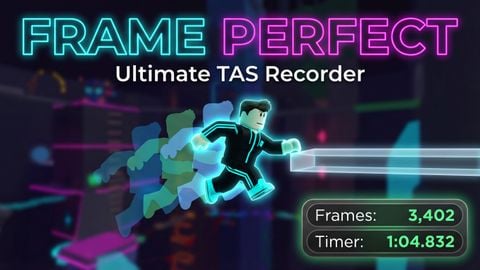
This is a Tool-Assisted Speedrun (TAS) tool. It allows you to slow down time, frame-by-frame, to create "perfect" movements in Roblox games. You record your inputs slowly, and the script plays them back at full speed.
REQUIREMENTS
A PC (Windows).
A Roblox Executor that supports the 'getsenv' function. Most free "Level 3" executors will not run the animation recorder correctly.
GETTING STARTED
Open your Roblox game.
Open your Executor.
Paste the TAS Recorder Redux script into the executor.
Click Execute.
You will see a GUI appear at the bottom of your screen. You can drag this GUI to move it.
THE STATUS COLORS
The border of the GUI changes color to tell you what is happening:
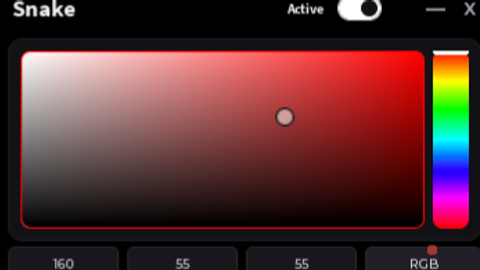
RED Border: You are Unpaused and Recording. Every move you make is being saved.
YELLOW Border: You are Paused. Time is frozen for your character.
GREEN Border: You are Playing Back a recording.
BASIC CONTROLS (The Essentials)
Caps Lock: The most important key. This toggles between PAUSE and RECORD.
1 (One): Create a Savestate (Checkpoint). Do this before a hard jump.
2 (Two): Delete the last Savestate.
8 (Eight): Teleport back to your last Savestate. Use this if you die or mess up.
R key: Go BACK one frame. Use this to rewind time slightly.
F key: Go FORWARD one frame. Use this to move perfectly, step-by-step.
0 (Zero): Play back your whole run from the start.
HOW TO MAKE YOUR FIRST RUN
Step 1: Start the script. Press Caps Lock to PAUSE immediately. The border turns Yellow.
Step 2: Hold down the W key (forward). While holding W, tap the 'F' key repeatedly. You will see your character move forward in tiny steps. This is "Frame Advance."
Step 3: To jump perfectly, hold Spacebar and tap 'F' until you land.
Step 4: If you successfully landed a jump, press '1'. This saves your spot.
Step 5: Move to the next obstacle. If you fall off the map, DO NOT PANIC. Just press '8'. You will teleport back to your last save spot.
Step 6: To redo a specific movement, press 'R' to rewind time, adjust your aim, and press 'F' to go forward again.
Step 7: Once you have finished the course, press '0' (Zero). The script will take control and play back everything you just did smoothly.
ADVANCED FEATURES
Debug Mode (Press V): This turns walls gray and makes invisible parts visible. It also turns "Kill Bricks" bright red and highlights thin walls in cyan. Use this to see hitboxes.
Enter Savestate (Press 3): If you made a mistake 3 checkpoints ago, you can delete your recent progress and "enter" an old savestate to start recording from there again.
Physics: When playing back, your character will be unanchored but have zero velocity. This means you will look smooth to other players, but you cannot be pushed around.
SAVING AND LOADING
You can save your TAS to your computer to show friends later.
Click the text box in the GUI.
Type a name (example: Level1Run).
Press '6' on your keyboard. It will save as 'Level1Run.json'.
To load it later, type 'Level1Run' in the box and press the Minus key (-).
REMEMBER: This creates a file on your PC in the 'workspace/TAS_Recorder' folder. You need an executor that supports writing files to save
CREDITS & TECHNICAL INFORMATION AT https://github.com/tomatotxt/TAS-Creator/tree/main
#roblox tas script recorder tool *isted speedrun#frame advance savestate rewind replay physics#lua animation hook smooth interpolation cframe#roblox speedrunning utility executor script cheat#tas recording playback velocity fix optimized




niceeeeeeeee
himbert i know you here nig
you can make tas like a happatas pls🥺🥺🥺🥺🥺🥺🥺🥺🥺🥺🥺🥺
W script i got an account to coment i vouch
Guys i might honestly remake this
@c00lk1ddy make a feature that u can hide gui
very good
it works but i cant load it when i join a new server how do i fix it?
whats one of the required executor's velocity wont load for me
Super lag for trashcan pc
small problem. the physics are a bit different when you like pause, you jump a bit less further if you only use +1 frame without anything else. do you know how to fix this or maybe it's a script problem?? idk.
@guymcguy I don't know how to fix that its weird roblox physics.
please add r6 animation support if possible