
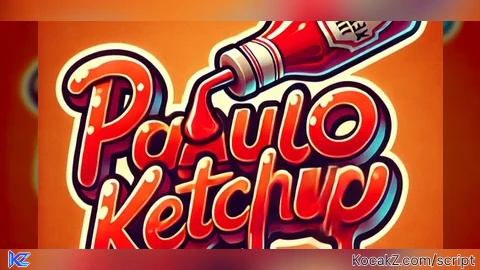

-- LocalScript dentro de StarterGui

local player = game.Players.LocalPlayer
local screenGui = Instance.new("ScreenGui")
screenGui.Parent = player:WaitForChild("PlayerGui")

-- Variáveis de controle
local menuOpened = true
local menuName = "PauloKetchup"

-- Criando o menu (Frame principal)
local menuFrame = Instance.new("Frame")
menuFrame.Size = UDim2.new(0, 350, 0, 450) -- Tamanho do menu
menuFrame.Position = UDim2.new(0, 20, 0.5, -225) -- À esquerda, centralizado verticalmente
menuFrame.BackgroundColor3 = Color3.fromRGB(40, 40, 40) -- Fundo cinza escuro
menuFrame.BorderSizePixel = 0
menuFrame.Visible = menuOpened
menuFrame.Active = true -- Permite interação com o menu
menuFrame.Draggable = true -- Torna o menu arrastável
menuFrame.Parent = screenGui

-- Criando o canto arredondado para o menu
local menuCorner = Instance.new("UICorner")
menuCorner.CornerRadius = UDim.new(0, 15) -- Bordas arredondadas
menuCorner.Parent = menuFrame

-- Criando o título do menu
local titleLabel = Instance.new("TextLabel")
titleLabel.Size = UDim2.new(1, 0, 0, 60) -- Título ocupa o topo
titleLabel.Position = UDim2.new(0, 0, 0, 0)
titleLabel.BackgroundColor3 = Color3.fromRGB(60, 60, 60) -- Fundo do título mais claro
titleLabel.BorderSizePixel = 0
titleLabel.Text = menuName
titleLabel.Font = Enum.Font.GothamBold
titleLabel.TextSize = 28
titleLabel.TextColor3 = Color3.fromRGB(255, 255, 255) -- Texto branco
titleLabel.Parent = menuFrame

-- Criando o canto arredondado para o título
local titleCorner = Instance.new("UICorner")
titleCorner.CornerRadius = UDim.new(0, 15)
titleCorner.Parent = titleLabel

-- Adicionando uma imagem ao menu
local menuImage = Instance.new("ImageLabel")
menuImage.Size = UDim2.new(0.8, 0, 0.4, 0) -- Proporção da imagem
menuImage.Position = UDim2.new(0.1, 0, 0.15, 0) -- Centralizado dentro do menu
menuImage.BackgroundTransparency = 1 -- Sem fundo
menuImage.Image = "rbxassetid://1234567890" -- Substitua pelo ID da sua imagem
menuImage.Parent = menuFrame

-- Criando o botão "Sair"
local leaveButton = Instance.new("TextButton")
leaveButton.Size = UDim2.new(0.8, 0, 0, 50) -- Botão dentro do menu
leaveButton.Position = UDim2.new(0.1, 0, 0.7, 0) -- Mais abaixo no menu
leaveButton.BackgroundColor3 = Color3.fromRGB(255, 75, 75) -- Fundo vermelho moderno
leaveButton.TextColor3 = Color3.fromRGB(255, 255, 255) -- Texto branco
leaveButton.Text = "Sair"
leaveButton.Font = Enum.Font.GothamBold
leaveButton.TextSize = 24
leaveButton.Parent = menuFrame

-- Criando o canto arredondado para o botão
local leaveButtonCorner = Instance.new("UICorner")
leaveButtonCorner.CornerRadius = UDim.new(0, 10)
leaveButtonCorner.Parent = leaveButton

-- Criando o botão de abrir/fechar o menu
local toggleButton = Instance.new("TextButton")
toggleButton.Size = UDim2.new(0, 50, 0, 50)
toggleButton.Position = UDim2.new(0, 20, 0, 20) -- No canto superior esquerdo da tela
toggleButton.BackgroundColor3 = Color3.fromRGB(70, 70, 70) -- Fundo cinza médio
toggleButton.BorderSizePixel = 0
toggleButton.Text = "☰" -- Ícone de menu
toggleButton.Font = Enum.Font.GothamBold
toggleButton.TextSize = 24
toggleButton.TextColor3 = Color3.fromRGB(255, 255, 255) -- Texto branco
toggleButton.Parent = screenGui

-- Criando o canto arredondado para o botão de alternância
local toggleCorner = Instance.new("UICorner")
toggleCorner.CornerRadius = UDim.new(0, 10)
toggleCorner.Parent = toggleButton

-- Função para alternar o menu
local function toggleMenu()
    menuOpened = not menuOpened
    menuFrame.Visible = menuOpened
end

-- Conectar o evento do botão de abrir/fechar
toggleButton.MouseButton1Click:Connect(toggleMenu)

-- Função para fechar o jogo
local function leaveGame()
    player:Kick("Você saiu do jogo.") -- Kickar o jogador local
end

-- Conectar o evento do botão "Sair"
leaveButton.MouseButton1Click:Connect(leaveGame)
How to Execute Universal Script – mobile auto leave
Step 1: Copy Code: Click the Copy Code button in the viewer above to grab the clean Lua loadstring.
Step 2: Launch Executor: Open a compatible, unpatched executor. If you need one, check our Roblox Executors Directory.
Step 3: Join Experience: Launch Roblox and join Universal Script.
Step 4: Attach & Run: Attach/inject your executor into the Roblox process, paste the code into the script tab, and press Execute.
Features & Information
Script Changelog (1)
Community Comments (1)
Frequently Asked Questions
How do I execute Universal Script – mobile auto leave in Roblox?
To run Universal Script – mobile auto leave, copy the Lua loadstring from the code viewer above, launch Roblox and join Universal Script, attach a working executor (such as Potassium, Solara, or Delta from our Executors directory), paste the code into your executor console, and click Execute.
Is Universal Script – mobile auto leave keyless or does it require an access key?
Universal Script – mobile auto leave requires an access key. You can retrieve the official key directly using the Get Script Key link provided above.
Is Universal Script – mobile auto leave currently safe and working?
This script is active and operational. Always test scripts using a secondary (alt) Roblox account to safeguard your main profile against anti-cheat bans.


![Ez Hub [Open Source] [150+ games] - Verified script for Universal Script](https://media.kocakz.me/b74a9ac15370ba766b2fa9531f17c9dad2c0befb2b951693ae723e4c7d2c3fb6.webp)

![[KEYLESS] Moondiety Script | 20+ supported Games - Verified script for Universal Script](https://media.kocakz.me/6834c33a36c9fbe66afae4c6754c2b80386ce636b2f972464a95866f4b6a42eb.webp)


Guys is a best script for mobile gamers