
local Players = game:GetService("Players")
local RunService = game:GetService("RunService")
local UserInputService = game:GetService("UserInputService")
local TweenService = game:GetService("TweenService")
local LocalPlayer = Players.LocalPlayer

local function getChar() return LocalPlayer.Character or LocalPlayer.CharacterAdded:Wait() end
local function getRoot() local c = getChar() return c:WaitForChild("HumanoidRootPart") end

local function teleportToWin()
    local chest = game.Workspace:FindFirstChild("Chest")
    local targetCFrame = nil

    if chest then
        if chest:IsA("Model") then
            targetCFrame = chest:GetPivot()
        elseif chest:IsA("BasePart") then
            targetCFrame = chest.CFrame
        end
    end

    if targetCFrame then
        local root = getRoot()
        root.CFrame = targetCFrame + Vector3.new(0, 5, 0)
        root.Velocity = Vector3.new(0,0,0)

        task.spawn(function()
            game:GetService("StarterGui"):SetCore("SendNotification", {
                Title = "By Alo's",
                Text = "Teleported to Win!",
                Duration = 1
            })
        end)
    else
        task.spawn(function()
            game:GetService("StarterGui"):SetCore("SendNotification", {
                Title = "By Alo's",
                Text = "Chest not found!",
                Duration = 3
            })
        end)
    end
end

local gui = Instance.new("ScreenGui")
gui.Name = "By_Alos"
gui.Parent = game.CoreGui

local mainFrame = Instance.new("Frame")
mainFrame.Size = UDim2.new(0, 320, 0, 200)
mainFrame.Position = UDim2.new(0.5, -160, 0.5, -100)
mainFrame.BackgroundColor3 = Color3.fromRGB(20, 0, 0)
mainFrame.BackgroundTransparency = 0.1
mainFrame.Active = true
mainFrame.Draggable = true
mainFrame.Parent = gui
mainFrame.Visible = true

local title = Instance.new("TextLabel")
title.Size = UDim2.new(1, 0, 0, 40)
title.Text = "Auto Win!"
title.TextColor3 = Color3.fromRGB(255, 50, 50)
title.BackgroundColor3 = Color3.fromRGB(60, 0, 0)
title.Font = Enum.Font.GothamBold
title.TextSize = 18
title.Parent = mainFrame

local credits = Instance.new("TextLabel")
credits.Size = UDim2.new(0, 150, 0, 20)
credits.Position = UDim2.new(0, 10, 1, -25)
credits.BackgroundTransparency = 1
credits.Text = "By Alo's & Slayer"
credits.TextColor3 = Color3.fromRGB(200, 50, 50)
credits.Font = Enum.Font.GothamBold
credits.TextSize = 12
credits.TextXAlignment = Enum.TextXAlignment.Left
credits.Parent = mainFrame

local versionText = Instance.new("TextLabel")
versionText.Size = UDim2.new(0, 50, 0, 20)
versionText.Position = UDim2.new(1, -60, 1, -25)
versionText.BackgroundTransparency = 1
versionText.Text = "V1"
versionText.TextColor3 = Color3.fromRGB(200, 50, 50)
versionText.Font = Enum.Font.GothamBold
versionText.TextSize = 12
versionText.TextXAlignment = Enum.TextXAlignment.Right
versionText.Parent = mainFrame

local closeBtn = Instance.new("TextButton")
closeBtn.Size = UDim2.new(0, 30, 0, 30)
closeBtn.Position = UDim2.new(1, -35, 0, 5)
closeBtn.Text = "X"
closeBtn.BackgroundColor3 = Color3.fromRGB(100, 0, 0)
closeBtn.TextColor3 = Color3.fromRGB(255, 100, 100)
closeBtn.Font = Enum.Font.GothamBold
closeBtn.Parent = mainFrame

local mainBtn = Instance.new("TextButton")
mainBtn.Size = UDim2.new(0, 280, 0, 60)
mainBtn.Position = UDim2.new(0.5, -140, 0.5, -30)
mainBtn.Text = "Teleport To Win"
mainBtn.BackgroundColor3 = Color3.fromRGB(80, 0, 0)
mainBtn.TextColor3 = Color3.fromRGB(255, 100, 100)
mainBtn.Font = Enum.Font.GothamBold
mainBtn.TextSize = 20
mainBtn.Parent = mainFrame
mainBtn.MouseButton1Click:Connect(function()
    teleportToWin()
end)

local iconFrame = Instance.new("ImageButton")
iconFrame.Size = UDim2.new(0, 60, 0, 60)
iconFrame.Position = UDim2.new(0.9, 0, 0.2, 0)
iconFrame.Image = "rbxassetid://90016208586978"
iconFrame.BackgroundColor3 = Color3.fromRGB(150, 0, 0)
iconFrame.BackgroundTransparency = 0
iconFrame.Visible = false
iconFrame.Parent = gui

local iconCorner = Instance.new("UICorner")
iconCorner.CornerRadius = UDim.new(1, 0)
iconCorner.Parent = iconFrame

local dragging = false
local dragStart, startPos
iconFrame.InputBegan:Connect(function(input)
    if input.UserInputType == Enum.UserInputType.MouseButton1 or input.UserInputType == Enum.UserInputType.Touch then
        dragging = true; dragStart = input.Position; startPos = iconFrame.Position
    end
end)
iconFrame.InputChanged:Connect(function(input)
    if dragging and (input.UserInputType == Enum.UserInputType.MouseMovement or input.UserInputType == Enum.UserInputType.Touch) then
        local delta = input.Position - dragStart
        iconFrame.Position = UDim2.new(startPos.X.Scale, startPos.X.Offset + delta.X, startPos.Y.Scale, startPos.Y.Offset + delta.Y)
    end
end)
UserInputService.InputEnded:Connect(function(input)
    if input.UserInputType == Enum.UserInputType.MouseButton1 or input.UserInputType == Enum.UserInputType.Touch then dragging = false end
end)

closeBtn.MouseButton1Click:Connect(function() mainFrame.Visible = false; iconFrame.Visible = true end)
iconFrame.MouseButton1Click:Connect(function() mainFrame.Visible = true; iconFrame.Visible = false end)

task.wait(1)
game:GetService("StarterGui"):SetCore("SendNotification", {
    Title = "By Alo's",
    Text = "Auto Win Script Loaded!",
    Duration = 3
})
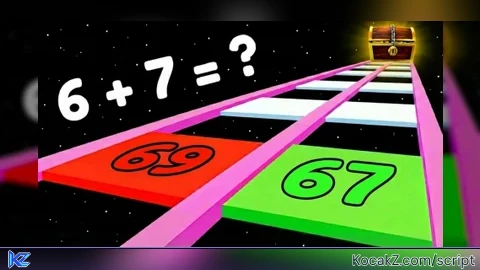
How to Execute Math Glass Bridge 🧠 Script – Auto win (Keyless)
Step 1: Copy Code: Click the Copy Code button in the viewer above to grab the clean Lua loadstring.
Step 2: Launch Executor: Open a compatible, unpatched executor. If you need one, check our Roblox Executors Directory.
Step 3: Join Experience: Launch Roblox and join Math Glass Bridge 🧠.
Step 4: Attach & Run: Attach/inject your executor into the Roblox process, paste the code into the script tab, and press Execute.
Features & Information
Script Changelog (1)
Community Comments (0)
No comments yet for this script.
Frequently Asked Questions
How do I execute Math Glass Bridge 🧠 Script – Auto win (Keyless) in Roblox?
To run Math Glass Bridge 🧠 Script – Auto win (Keyless), copy the Lua loadstring from the code viewer above, launch Roblox and join Math Glass Bridge 🧠, attach a working executor (such as Potassium, Solara, or Delta from our Executors directory), paste the code into your executor console, and click Execute.
Is Math Glass Bridge 🧠 Script – Auto win (Keyless) keyless or does it require an access key?
Math Glass Bridge 🧠 Script – Auto win (Keyless) requires an access key. You can retrieve the official key directly using the Get Script Key link provided above.
Is Math Glass Bridge 🧠 Script – Auto win (Keyless) currently safe and working?
This script is active and operational. Always test scripts using a secondary (alt) Roblox account to safeguard your main profile against anti-cheat bans.