
 tzukizy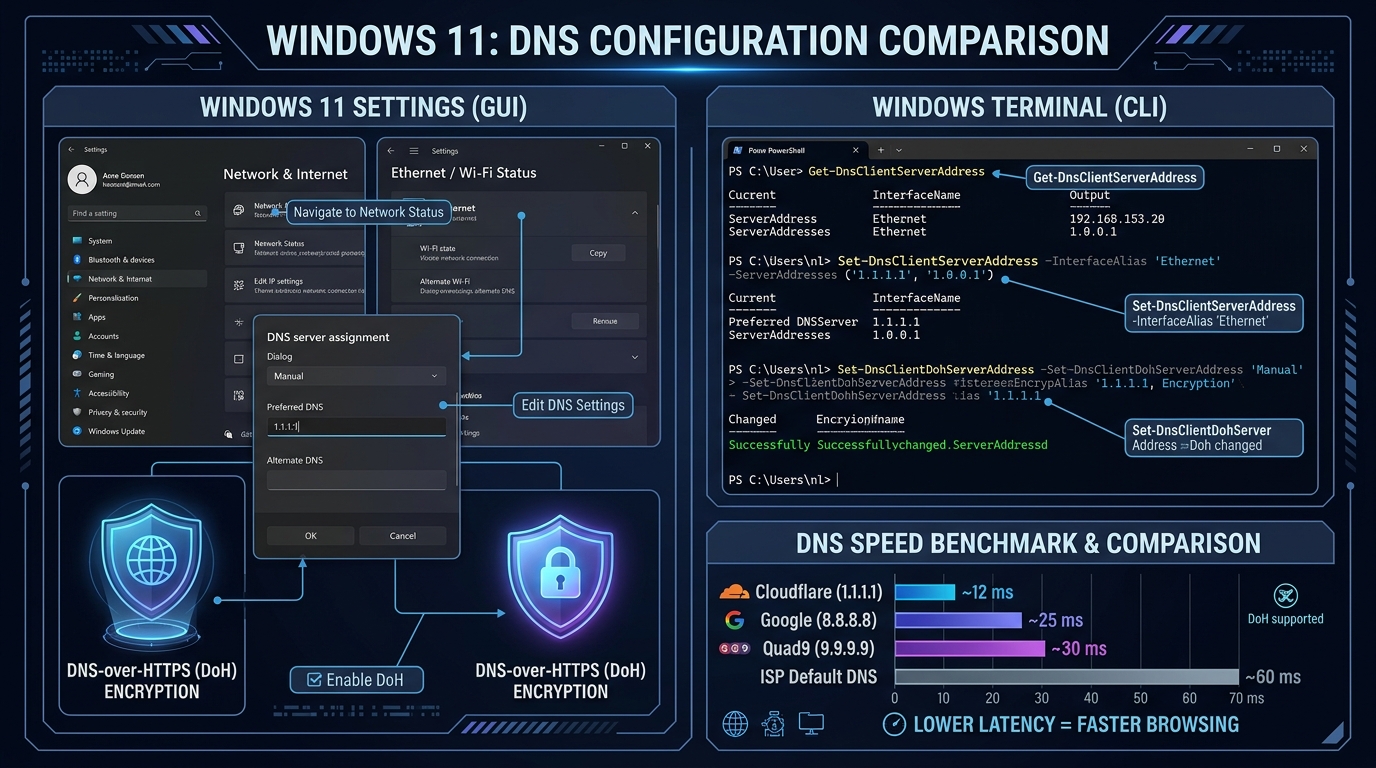
When your Windows 11 PC establishes a connection to a game server, web service, or multiplayer matchmaking lobby, it relies on the Domain Name System (DNS) to translate human-readable domain names into IP addresses. By default, your network adapter queries your Internet Service Provider's (ISP) recursive resolver. ISP resolvers are notoriously inconsistent: they often log user browsing metadata, suffer periodic routing hiccups, and occasionally fail to resolve global gaming nodes swiftly.
If you want to eliminate resolution lag, protect your queries with encryption, or bypass unreliable ISP routing, you can change DNS servers Windows 11 uses in a few clicks or through a single command. Understanding how third-party resolvers operate—and separating genuine latency benefits from common marketing myths—ensures your PC maintains the cleanest possible connection.
How DNS Affects Gaming: Speed vs In-Game Latency
A common misconception among gamers is that switching to a fast DNS resolver like Cloudflare or Google will instantly drop in-game ping from 80ms down to 20ms. In reality, network latency and DNS resolution operate at two distinct phases of a network connection:
- Resolution Phase (DNS): When you click "Join Game" or launch a client, your PC asks the DNS server: "What is the IP address for matchmaker.example.com?" The DNS server responds with an IPv4 or IPv6 address. This lookup happens once per domain and is stored in your local Windows DNS cache for the duration of the Time-To-Live (TTL) record.
- Transmission Phase (Game Packets): Once your game client obtains the direct IP address of the dedicated game server, it sends real-time gameplay packets (typically UDP) straight to that IP address. DNS plays zero role in the speed of these active gameplay packets.
While a faster resolver will not lower your physical round-trip time (RTT) to a game server, an optimized DNS resolver yields significant practical advantages for gaming:
- Faster Matchmaking and Lobby Loading: Loading multiplayer menus, asset servers, and matchmaking pools requires dozens of rapid domain resolutions. Fast resolvers eliminate noticeable lobby hitches.
- Reliable Server Discovery: If an ISP DNS server fails to update its records when a game studio migrates its clusters, you may encounter connection timeouts. Public resolvers refresh records much faster.
- Protection Against Transparent Proxying: Many residential ISPs quietly redirect NXDOMAIN (non-existent domain) queries to promotional ad pages or filter specific CDN endpoints.
If you are diagnosing severe mid-match packet drops or jitter, DNS is only the initial handshake. You should also inspect running processes via our guide on how to check which programs use your internet to ensure background updates are not choking your bandwidth, and consult our walkthrough on reducing high ping in Roblox and online games.
Benchmark Comparison: Cloudflare vs Google vs Quad9
The three most reputable public DNS providers offer distinct tradeoffs between query speed, global routing infrastructure, and built-in security filtering.
| Provider | Primary IPv4 | Secondary IPv4 | Primary IPv6 | Secondary IPv6 | Key Strength | Best Use Case |
|---|---|---|---|---|---|---|
| Cloudflare | 1.1.1.1 | 1.0.0.1 | 2606:4700:4700::1111 | 2606:4700:4700::1001 | Raw resolution speed & privacy commitment | Competitive gaming and minimum lookup delay |
| Google Public DNS | 8.8.8.8 | 8.8.4.4 | 2001:4860:4860::8888 | 2001:4860:4860::8844 | Massive global Anycast network | Absolute reliability and worldwide edge nodes |
| Quad9 | 9.9.9.9 | 149.112.112.112 | 2620:fe::9 | 2620:fe::fe | Real-time threat blocking (malware & phishing) | Security-focused setups and clean endpoints |
1. Cloudflare (1.1.1.1)
Cloudflare consistently benchmarks as the fastest public recursive resolver across global DNSPerf rankings. Built on Cloudflare's massive content delivery network, queries are answered at the nearest edge data center. Cloudflare maintains a strict privacy policy, purging operational logs within 25 hours and refusing to sell query data to advertisers.
2. Google Public DNS (8.8.8.8)
Operating since 2009, Google's public resolver is an industry standard. While marginally slower than Cloudflare in raw lookup milliseconds in some urban centers, Google operates peering points with nearly every global telecommunications carrier. If you frequently connect to overseas servers or play titles hosted on Google Cloud Platform (GCP), Google Public DNS delivers exceptional routing consistency.
3. Quad9 (9.9.9.9)
Quad9 is a non-profit foundation based in Switzerland, subject to Swiss privacy laws. Unlike Cloudflare and Google, which return raw records by default, Quad9 actively aggregates threat intelligence from over twenty cybersecurity research groups. If a game mod, cracked patch, or malicious server attempt contacts a known malware or command-and-control domain, Quad9 blocks the resolution at the DNS layer.
Method 1: Change DNS via Windows 11 Settings (With DNS over HTTPS)
Windows 11 introduced native support for DNS over HTTPS (DoH). Traditional DNS sends queries in cleartext over port 53, meaning anyone on your local network or your ISP can inspect every domain your PC requests. DoH encrypts your DNS traffic inside standard HTTPS tunnels (port 443), preventing snooping and DNS spoofing.
Follow these steps to configure your adapter using the modern Windows 11 interface:
- Press Win + I to open the Settings application.
- Select Network & internet from the left-hand navigation pane.
- Click on your active connection type:
- If connected via an Ethernet cable, click Ethernet.
- If connected via wireless, click Wi-Fi, then select Hardware properties.
- Scroll down to the DNS server assignment section and click the Edit button.
- In the drop-down menu, switch the setting from Automatic (DHCP) to Manual.
- Toggle the IPv4 switch to On.
- Enter the IP addresses for your chosen provider (example using Cloudflare):
- Preferred DNS:
1.1.1.1 - Alternate DNS:
1.0.0.1
- Preferred DNS:
- Under DNS over HTTPS, select Encrypted only (DNS over HTTPS) or Encrypted preferred, unencrypted allowed. Selecting Encrypted only enforces strict TLS encryption for all lookups.
- (Optional but recommended) Toggle IPv6 to On and input the provider's IPv6 addresses:
- Preferred DNS:
2606:4700:4700::1111 - Alternate DNS:
2606:4700:4700::1001 - Select Encrypted only (DNS over HTTPS).
- Preferred DNS:
- Click Save.
Your network adapter will immediately rebind its resolver settings without disconnecting ongoing TCP sessions.
Method 2: Change DNS via PowerShell (Fastest for Power Users)
For administrators, multi-PC setups, or quick troubleshooting, PowerShell allows you to query active adapters and assign static DNS servers in seconds.
Step 1: Identify Your Active Adapter Alias
Launch PowerShell as Administrator (Right-click Start > Terminal (Admin)) and run:
Get-NetAdapter | Where-Object Status -eq "Up" | Select-Object Name, InterfaceAlias, Status, LinkSpeed
Note the InterfaceAlias of your active connection (usually Ethernet or Wi-Fi).
Step 2: Assign the DNS Server Addresses
Execute the Set-DnsClientServerAddress cmdlet, replacing "Ethernet" with your interface alias:
For Cloudflare:
Set-DnsClientServerAddress -InterfaceAlias "Ethernet" -ServerAddresses ("1.1.1.1", "1.0.0.1")
For Google:
Set-DnsClientServerAddress -InterfaceAlias "Ethernet" -ServerAddresses ("8.8.8.8", "8.8.4.4")
For Quad9:
Set-DnsClientServerAddress -InterfaceAlias "Ethernet" -ServerAddresses ("9.9.9.9", "149.112.112.112")
Step 3: Enable DNS over HTTPS via PowerShell
To ensure Windows 11 treats these addresses as DoH-capable templates, verify the system's global DoH table:
Get-DnsClientDohServerAddress
If your resolver is listed, Windows automatically enables encryption when supported by your network card's driver stack.
Step 4: Revert Back to Automatic (DHCP)
If you ever travel or need your local router to assign DNS automatically, revert the adapter with:
Set-DnsClientServerAddress -InterfaceAlias "Ethernet" -ResetServerAddresses
Post-Configuration: Flushing and Verifying Your DNS
Changing your DNS settings in Windows 11 does not automatically clear previously cached domain records stored in memory. If an application or game lobby was failing to resolve a server prior to the change, it may continue using stale records until you purge the resolver cache.
1. Flush the Windows Resolver Cache
In PowerShell or Command Prompt, execute:
Clear-DnsClientCache
(Or the classic Command Prompt equivalent: ipconfig /flushdns)
You should receive an immediate confirmation: "Successfully flushed the DNS Resolver Cache."
2. Verify Which DNS Server Is Answering Queries
To confirm that your queries are routing to your new resolver and not defaulting to your router's gateway IP, test a domain lookup using Resolve-DnsName or nslookup:
nslookup cloudflare.com
Look at the header of the command output:
Server:  one.one.one.one
Address:  1.1.1.1
If the Address line displays 1.1.1.1 (or 8.8.8.8 / 9.9.9.9), your operating system is successfully querying the third-party resolver. If it still displays your local router gateway (such as 192.168.1.1), verify that your adapter properties were saved and restart your network connection.
Troubleshooting Common Windows 11 DNS Issues
Issue 1: "DNS Server Isn't Responding"
If Windows shows a yellow warning triangle or web pages refuse to load after configuring manual DNS:
- Captive Portal Blocks: Public Wi-Fi networks (hotels, airports, universities) frequently intercept port 53 and block external DoH endpoints to force you onto their login portal. Revert your adapter to Automatic (DHCP) until you complete web authentication.
- Third-Party Antivirus Firewall Rules: Security suites with built-in "Web Shields" sometimes block port 853 (DNS over TLS) or intercept encrypted DNS queries. Temporarily disable third-party firewall filtering to test connectivity.
Issue 2: Games Cannot Connect Despite Successful Web Browsing
Some competitive games check server integrity using strict direct IP pools rather than standard hostnames. If your web browser functions normally but a specific game reports connection timeouts, the problem is rarely DNS. Check your firewall permissions and review our guide on fixing Roblox and online game disconnects for MTU and UDP socket troubleshooting.
Practical Takeaway
Switching to Cloudflare (1.1.1.1), Google (8.8.8.8), or Quad9 (9.9.9.9) on Windows 11 gives you faster domain lookups, reliable matchmaking lobby discovery, and protection against ISP tracking when combined with DNS over HTTPS.
Use Cloudflare if your sole objective is minimal query latency. Choose Google if you need global routing resilience across distant regions. Choose Quad9 if you want automated blocking against malicious domains at the network level. After applying your choice, always run Clear-DnsClientCache to guarantee a clean slate.